
How to Create a Disk Partition in Windows 10
Shrink an existing volume, create a new simple volume and format it with Windows Disk Management—without touching critical system partitions.
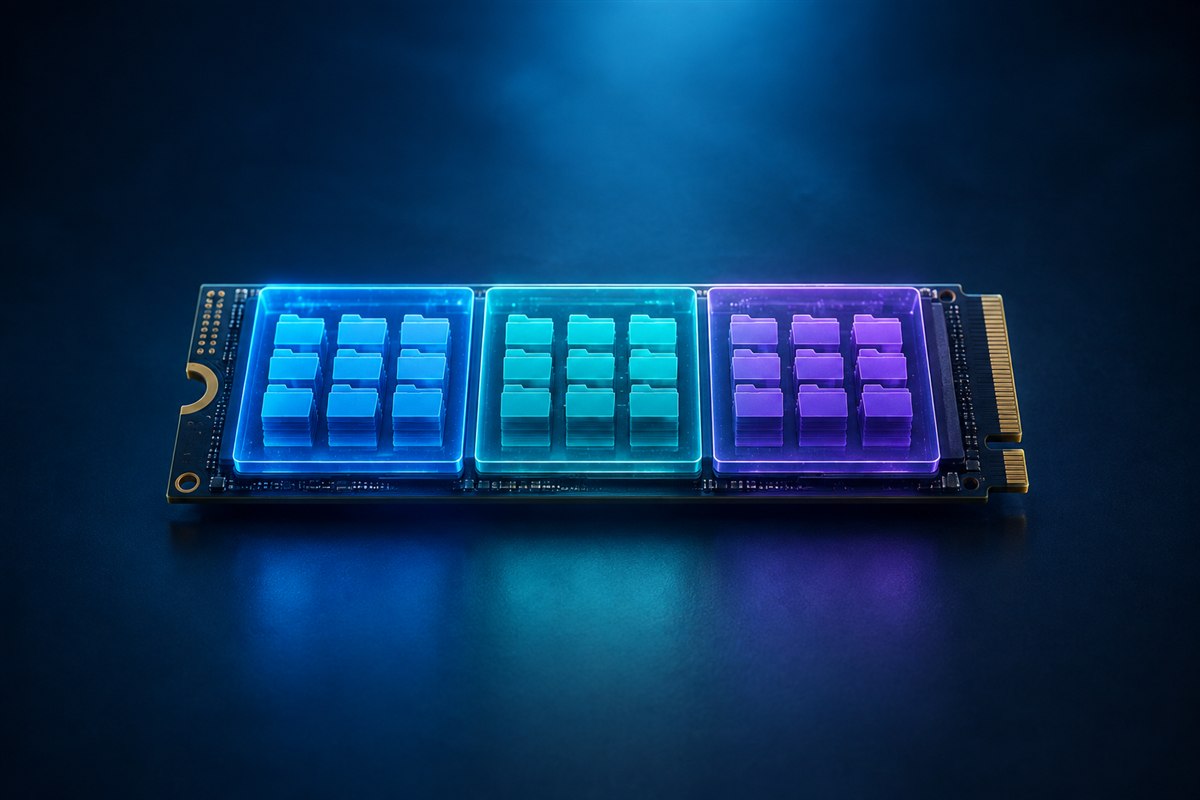
A partition divides one physical drive into separate volumes that Windows can label with different drive letters. This can organize data or prepare unallocated space for another purpose, but it does not create another physical backup: every partition on that drive can be lost if the drive fails.
Windows 10 reached end of support on October 14, 2025. These built-in steps still apply, but an unsupported installation no longer receives normal security updates. Consider moving compatible hardware to a supported operating system.
Before changing partitions
- Back up important files to another physical device or a trusted cloud backup.
- Connect a laptop to power and close applications.
- Save your BitLocker or device-encryption recovery key if encryption is enabled.
- Identify the drive by its capacity and existing volume label.
Do not delete or format partitions labeled EFI System, Recovery, System Reserved or OEM. They may not have drive letters, but Windows or the manufacturer may need them for startup and recovery.
Open Disk Management
Right-click the Start button and choose Disk Management, or press Windows+R, enter diskmgmt.msc and select OK. Wait for the lower panel to show every disk and volume.
Confirm whether the target space is already labeled Unallocated. If it is, proceed to creating a new simple volume. If all space belongs to an existing data or Windows volume, shrink that volume first.
Shrink an existing volume
- Right-click the correct volume and select Shrink Volume.
- Wait while Windows calculates available shrink space.
- Enter the amount to shrink in megabytes. Roughly 1,024 MB equals 1 GB.
- Review the values, then select Shrink.
The new area appears as unallocated space. Shrinking normally preserves files, but it is still a structural disk operation and should not be started without a backup. Windows may offer less space than the volume’s total free space because some files cannot be moved while the system is running.
Create and format the new partition
- Right-click the unallocated area and choose New Simple Volume.
- Select the volume size. Use the default to consume all available space or a smaller value to leave room for another volume.
- Assign an available drive letter.
- For normal Windows storage, choose NTFS, leave allocation unit size at Default and enter a useful volume label.
- Choose quick format for a healthy modern drive, review the summary and select Finish.
The new volume should appear in File Explorer. Create a test folder and confirm that a file can be written and opened before relying on it.
Solve common partitioning problems
Shrink Volume offers very little space
Restart Windows, confirm the file system is healthy and try again. Unmovable system files can limit the operation. Avoid random third-party partition tools on your only copy of important data.
The new drive letter does not appear
In Disk Management, verify that the volume is formatted and has a drive letter. Right-click it and use Change Drive Letter and Paths if needed.
You want to extend a volume later
Disk Management generally requires suitable unallocated space immediately after that volume on the same disk. Deleting a neighboring partition erases its contents, so back it up first and verify the disk layout before acting.
The disk shows MBR or GPT
These are partition styles. Modern UEFI Windows systems normally use GPT. Converting a populated boot disk can affect startup or erase data depending on the method, so it is outside this basic partition-creation process.
Frequently asked questions
Does creating a partition delete files?
Creating a volume in genuinely unallocated space does not normally erase a neighboring volume, but choosing the wrong partition or format target can. Back up first.
Is a separate partition a backup?
No. It remains on the same physical disk and is exposed to the same hardware failure, theft and many forms of malware.
Should I use NTFS or exFAT?
NTFS is the usual choice for an internal Windows volume. exFAT can help with removable drives shared across operating systems, but has different features and tradeoffs.
References and further reading
Disk tools can cause permanent data loss when the wrong target is selected. Confirm the disk number, capacity and volume label at every step.