
Docker Commands Cheat Sheet
A Docker commands cheat sheet for images, containers, logs, networks, volumes, Compose, cleanup and troubleshooting.
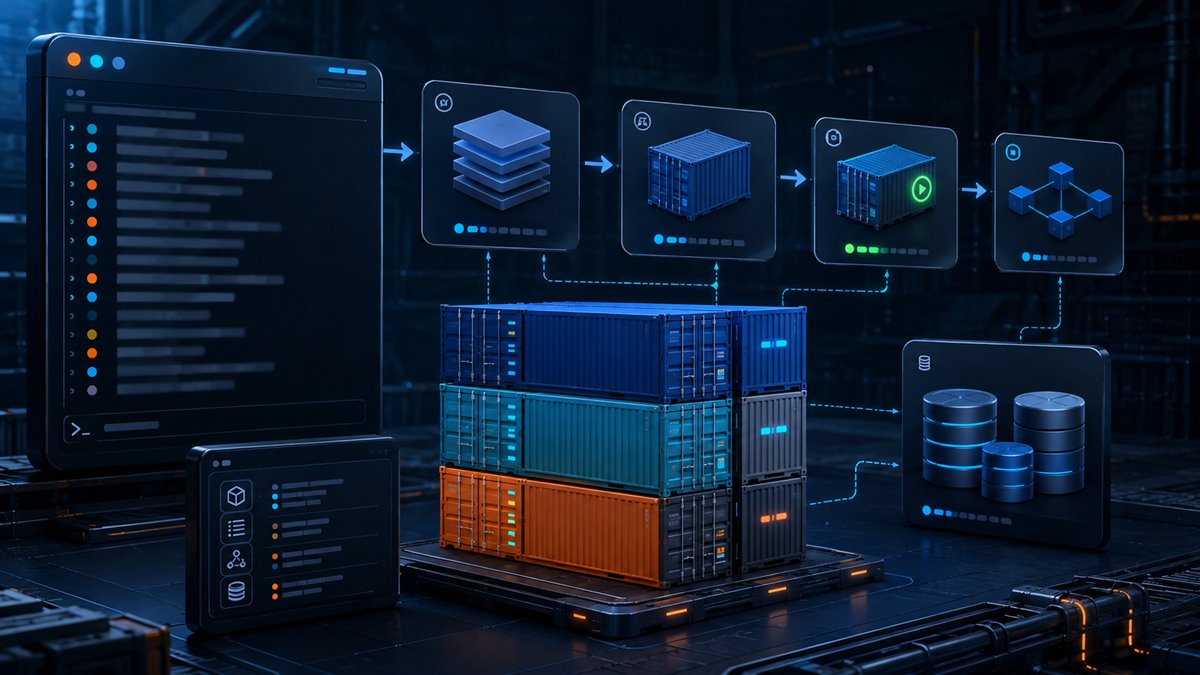
Use this Docker cheat sheet to move from images to running containers and troubleshoot them safely. Names are easier to reuse than container IDs, and cleanup commands deserve a careful preview.
Images and builds
docker build -t app:dev . | Build and tag an image from the current context. |
docker image ls | List local images. |
docker pull IMAGE | Download an image. |
docker image inspect IMAGE | Show detailed image metadata. |
docker image rm IMAGE | Remove an unused image. |
Run and manage containers
docker run --name web -p 127.0.0.1:8080:80 -d IMAGE | Create and run a named container in the background. |
docker ps -a | List running and stopped containers. |
docker logs -f web | Follow container logs. |
docker exec -it web sh | Run an interactive shell in a running container. |
docker stop web | Request a graceful stop. |
docker rm web | Remove a stopped container. |
Compose, networks and volumes
docker compose up -d | Start the Compose application. |
docker compose logs -f | Follow service logs. |
docker compose down | Stop and remove Compose containers and networks. |
docker network ls | List networks. |
docker volume ls | List volumes. |
docker stats | Stream resource usage. |
Cleanup and safety
docker system df shows Docker disk use. Prune commands remove unused objects and can affect cached builds or stopped environments. List and inspect the exact targets before removing them. Never place secrets in an image layer or commit them in a Compose file.
Worked example: a local web container
This requires a running Docker Engine and permission to pull the public nginx image. It creates a disposable server without mounted application data. The tag is mutable; use a reviewed pinned version or digest for a reproducible deployment.
docker run --name compass-demo --rm -d -p 127.0.0.1:8080:80 nginx:alpine
docker ps --filter name=compass-demo
docker port compass-demo
docker logs --tail 30 compass-demo
Why these commands are in this order
--name compass-demo gives the later inspection commands a stable target. -d returns control to your terminal while the server runs; a returned container ID alone does not prove the website is ready. --rm makes this a disposable exercise: stopping the container removes its writable layer, so do not use this pattern to store important files.
The port mapping has three parts: the host address, the host port and the container port. Here the browser connects to host port 8080, which forwards to port 80 inside the container. Changing the host port does not change where nginx listens internally.
The remaining commands answer different questions. docker ps checks whether the process is running. docker port checks the published mapping. docker logs provides application output. If one check fails, investigate that layer before changing unrelated settings. A running container and a working application are separate checks.
Open http://127.0.0.1:8080 on the same machine. The container must run, the port must be mapped and the application must listen. If host port 8080 is occupied, choose another host port while keeping container port 80.
The explicit host address limits publishing to localhost on current releases. Omitting it normally publishes on all interfaces. Docker documents a localhost exposure issue before version 28.0.0; keep the engine updated. Read the port publishing guidance.
docker stop compass-demoBecause of --rm, stopping also removes this container. Its writable layer is disposable; the image remains. This is not a database persistence strategy.
Read the failure before changing commands
| Symptom | Inspect | Use the result |
|---|---|---|
| Container exits immediately | docker ps -a and docker logs CONTAINER | Read exit state and application errors. Restarting cannot repair invalid configuration. |
| Container runs but the page is unreachable | docker port CONTAINER and application listening port | Check port order and the interface the application listens on. |
| Name already in use | docker ps -a --filter name=NAME | Identify the existing workload; choose another demo name rather than deleting it. |
| Data disappears after recreation | Mounts and application write locations | Use appropriate persistent storage and test backup/restore. |
These are documentation-based examples; they were not executed during this revision because a Docker runtime was unavailable. The run reference explains creation, port and removal flags. Avoid broad prune commands for unidentified storage problems.
Frequently asked questions
What is the difference between docker run and docker start?
docker run creates a new container from an image and starts it. docker start restarts an existing stopped container.
How do I see all Docker containers?
Use docker ps -a. Without -a, only running containers are shown.
Sources and further reading
Use these official references for version-specific command behavior and options.
Found something that needs updating? Send a correction with the page URL and a supporting source.