
How to Fix Slow Wi-Fi
Diagnose slow Wi-Fi and improve speed, range and reliability without guesswork.
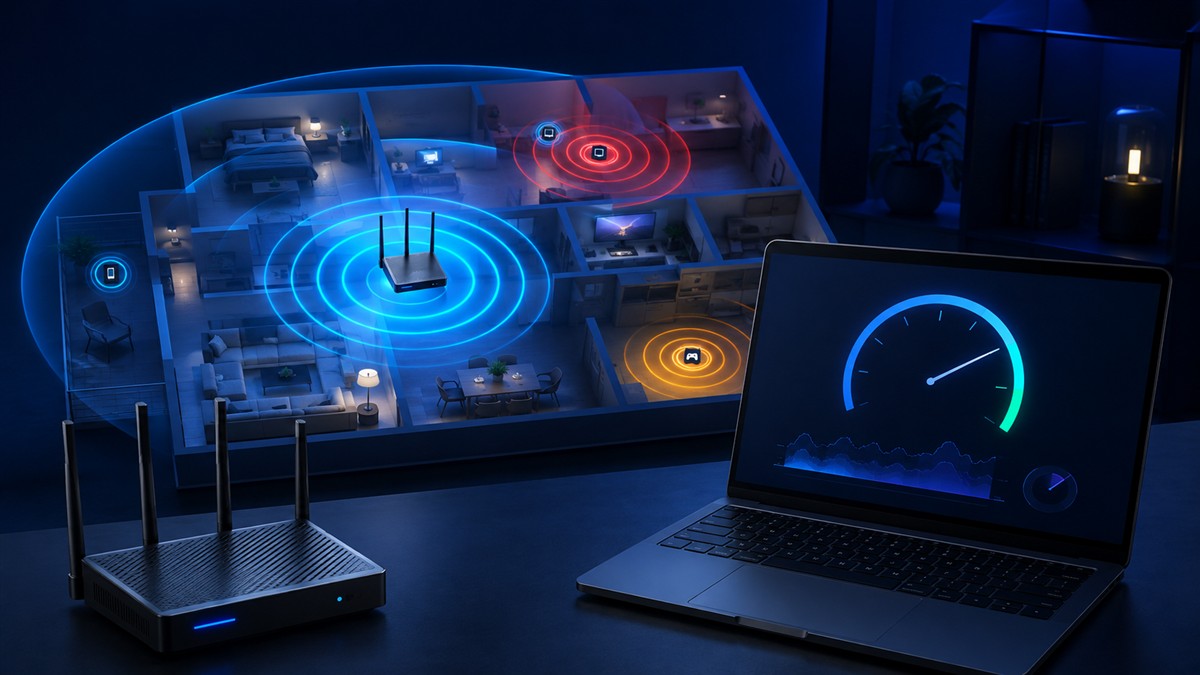
One weak room, one slow laptop and a connection that is slow over Ethernet need different fixes. Find where the slowdown starts before buying a router or changing your internet plan.
Build a comparable baseline
Pause downloads and cloud backups if you control them. Use the same test and server near the router, then in the problem room. Repeat at similar times and record upload, download and latency, not only the highest result.
Compare another device in the same location. If possible, connect a computer to a router LAN port using Ethernet and disable its Wi-Fi during the test. This changes the local connection while keeping the rest of the path similar. Do not reconfigure unfamiliar provider equipment.
| Pattern | Likely direction | Next comparison |
|---|---|---|
| Two devices are good nearby but poor in one room | Coverage or interference | Test an intermediate location and an open router position. |
| Only one device is slow | Device, adapter, app or software difference | Match the band and test; inspect background transfers and recent changes. |
| Ethernet is good; nearby Wi-Fi is poor on several devices | Local wireless path | Compare supported bands and router firmware/settings. |
| Wired and wireless results deteriorate together | Router load, cable/link trouble, congestion or upstream problems | Compare another cable/device and collect timed results. |
| One website or game is slow | Destination, app or route | Compare an unrelated service before changing the network. |
These are leads, not proof. A slow wired result can also come from an old adapter, damaged cable or background traffic.
Test coverage changes one at a time
Try an open, raised router position away from metal objects and enclosed cabinets. Retest the same room after each change. Improvement can indicate where a cable run or access point would help; it does not establish that every mesh kit or extender will perform equally.
Where router and client support several bands, compare them in the same locations. Higher-frequency bands can offer more capacity nearby but lose more signal through obstructions. A lower-frequency band may reach farther while being busier. See Microsoft's Wi-Fi layout guidance.
An extender needs a useful connection back to the router. Putting it in the weakest room may repeat the bottleneck. Test an intermediate position or consider a wired access point where practical.
Investigate one slow Windows device
Look for a recent update, VPN change or new application. On a personal device, compare with an optional VPN disconnected if appropriate; do not bypass workplace requirements.
Microsoft recommends the Network and Internet troubleshooter in Get Help for Windows 11. Its troubleshooting instructions also cover forgetting and reconnecting to Wi-Fi. Have the password ready before forgetting the network.
Adapter removal and network reset are later steps, not routine speed boosters. Keep a way to reconnect and get the correct driver first. Resetting can remove settings and require VPN or virtual-network configuration again.
Record what the test actually shows
Use columns for time, device, band/connection type, room, download, upload, latency, active downloads and change made. Comparable results are more useful than unrelated screenshots.
Illustrative diagnosis: Ethernet gives 190Mbps, a nearby phone 170Mbps, and the same phone in a bedroom 18Mbps. Another phone shows the same room-dependent drop. Those invented measurements point toward bedroom coverage; upgrading a 200Mbps internet plan would not address the demonstrated local limit.
For games and calls, record dropouts and latency spikes too. High download speed does not exclude interruptions. Repeat the original test and the failing activity after a change.
When to contact support
Contact the provider for persistent comparable wired and wireless failures, fault indications on its equipment or a confirmed outage. Share times, connection methods, results and whether its recommended restart helped. Send details privately; do not post credentials or account numbers.
This guide combines a diagnostic method with linked Microsoft instructions. The numbers are illustrative, not measurements of your network. Use the exact equipment instructions for configuration changes.
Send a correction with the page URL and supporting details. Our editorial policy explains sourcing and testing practices.