
How to Choose a Laptop for Coding and Video Editing
Choose a laptop for coding, college and video editing with practical RAM, CPU, GPU, display and storage advice, plus a pre-purchase checklist.
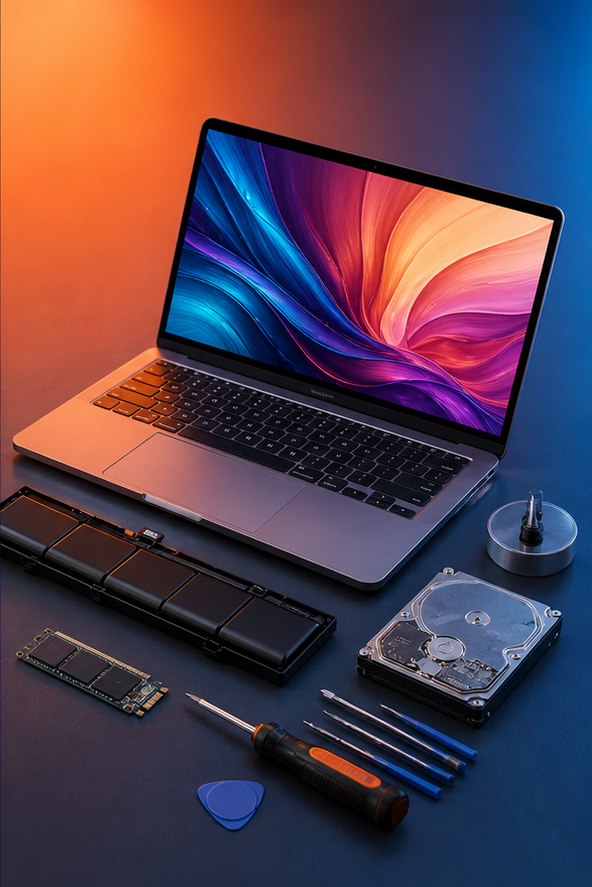
The right laptop depends on what you create. Writing a small website, running several development containers and editing a multicamera video put very different demands on the same machine. Start with your applications and projects, then decide where extra money will save you time.
Start with your real workload
Write down your three most-used applications, the largest project you expect to open and how often you work away from a charger. For coding, include your editor, browser, local database, containers and any phone emulator. For editing, record resolution, codec, effects and the number of simultaneous video streams.
Use the table below as an editorial starting point, not a promise that every application will run well. Check the current requirements of your exact software version before choosing a configuration.
| Workload | Memory and storage to consider | Where to prioritize spending |
|---|---|---|
| College, web development and beginner Python | 16 GB RAM; 512 GB SSD | Keyboard, battery, screen and reliable support |
| Large projects, containers and emulators | 32 GB RAM; 1 TB SSD | Sustained CPU performance and memory capacity |
| Basic photo work and short 1080p edits | 16–32 GB RAM; storage for source files and cache | Display quality and supported media acceleration |
| Frequent 4K edits or heavier effects | 32 GB or more; 1 TB or larger SSD plus separate backup | Application-supported GPU, media engine and cooling |
Understand CPU, GPU and cooling trade-offs
A CPU helps with compilation, general responsiveness and many export tasks. A GPU accelerates supported effects, 3D work and some computation. Basic coding usually does not require a dedicated graphics card; buying one can add weight, heat and cost without helping your assignments.
For video, check whether the hardware and application support acceleration for the codec, bit depth and chroma format you use. Two files labelled 4K can behave differently. Look for tests of the exact laptop configuration running comparable projects: a short burst score does not describe a long export.
Adobe publishes version-specific Premiere requirements. Use these to check supported operating systems, processors and GPUs, then leave capacity for your other applications.
Buy memory for the whole working session
Imagine your editor, browser tabs, video call and local services open together. Memory must accommodate that session, not just one app. If you can try a similar computer, watch memory use during a representative project. Frequent swapping alongside slowdowns is a reason to investigate more RAM.
Confirm whether RAM is soldered and whether an SSD can be replaced. A cheaper configuration can become limiting if neither can be upgraded. Unified memory is shared by system and graphics workloads, so avoid treating its full capacity as separate system RAM plus separate video memory.
Estimate storage from your installed tools, active projects, source footage and cache. Keep a separate backup; an external project drive is not a backup if it holds the only copy. Our 3-2-1 backup guide explains a practical approach.
Check the screen, ports and operating system
For coding, readable text and enough vertical workspace often matter more than a very high refresh rate. For photo and video work, compare measured color accuracy and coverage of the color space you deliver in. A wide-gamut specification alone does not guarantee accurate color.
Test keyboard comfort, trackpad, screen reflections and fan noise. Count the ports you actually need: external monitor, card reader, storage, headphones and charging. USB-C describes a connector; verify the specific port supports the display, data speed and charging functions you expect.
Check your course or employer requirements before choosing an operating system or CPU architecture. Some tools, plugins and device drivers have platform restrictions. Include the charger and adapters when judging travel weight.
A useful way to compare two laptops
Suppose Laptop A has 16 GB of fixed memory and a stronger GPU, while Laptop B has 32 GB and integrated graphics. A student running multiple containers may benefit more from B. An editor using GPU-heavy effects may prefer A only after checking that 16 GB is sufficient for the complete workload. Neither is universally better.
- Reject configurations that cannot run a required application.
- Compare a realistic workload, including plugged-in and battery use.
- Calculate the total with adapters, backup storage and any software costs.
- Check local warranty service and the return policy.
- Save the exact model number, display option and memory specification before ordering.
For a broader ownership checklist, read how to choose a laptop for long-term use.
Frequently asked questions
Is 16 GB enough for coding?
It is a reasonable starting point for many beginner and web projects. Large repositories, virtual machines, containers and emulators can justify more. Measure a comparable workload when possible.
Do I need a gaming laptop for editing?
No. Choose according to application support, sustained performance, display quality and portability. A gaming label does not establish those qualities.
Can proxies help an older editing laptop?
Lower-resolution working copies can make editing smoother, but do not remove every effect, memory or final-export limit. Keep the original media available for finishing.
Sources and further reading
Consult the linked documentation for details and version-specific requirements. Hardware configurations in this guide are planning examples, not hands-on benchmark results.
Found something that needs updating? Send a correction with the page URL and a supporting source. Read our editorial policy.