
How to Speed Up a Slow Computer
A practical checklist to diagnose and improve a slow desktop or laptop.
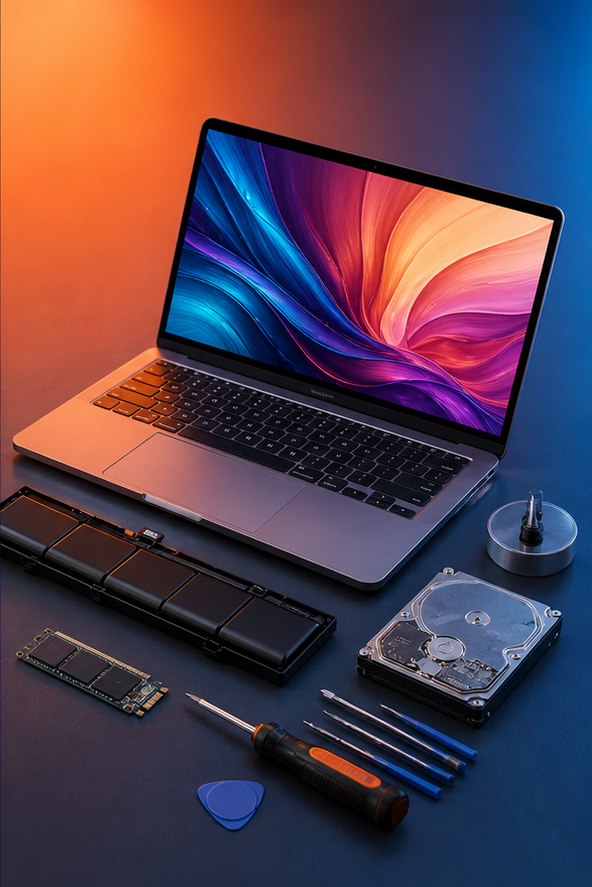
A practical checklist to diagnose and improve a slow desktop or laptop. Start with the checks below and confirm the effect of each change before moving on.
Table of contents
Identify the bottleneck
Restart, check free storage and use the system activity monitor to find sustained CPU, memory or disk use. Note whether slowness affects one app or the entire computer.
Remove unnecessary load
Uninstall unused software, reduce startup items and update the operating system from its official settings. Avoid unknown cleaner utilities that promise one-click speed boosts.
Consider maintenance or upgrades
Clear blocked vents and keep the device on a hard surface. An SSD or memory upgrade can help compatible older systems. Windows users can follow our focused Windows 11 guide.
Use symptoms to narrow the cause
Write down when the computer feels slow: immediately after startup, only in one application, during internet tasks or after it becomes hot. Open the operating system’s task monitor while reproducing the problem. A single process consuming CPU, memory or disk gives you a useful lead. If the pointer freezes and every app stops responding, check storage health and backups before assuming the issue is only software.
Safe improvements to try first
- Restart the computer and finish trusted operating-system and application updates.
- Keep meaningful free space on the system drive and remove unused apps through normal uninstall tools.
- Reduce automatic startup programs while preserving security and hardware services.
- Scan with the built-in or trusted security tool.
- Clean external dust from vents and use the computer on a hard surface that allows airflow.
Avoid registry cleaners, unknown driver download sites and utilities that promise to fix hundreds of errors. They often obscure the original problem and may create new ones.
Plan an upgrade from measurements
If memory remains nearly full during normal work, additional compatible RAM may reduce reloading. Replacing a mechanical system drive with an SSD often produces a larger everyday improvement than a small processor upgrade. For gaming or 3D work, compare graphics utilization, temperature and the application’s requirements. Check the exact model and service manual because some laptops have soldered components. Back up data before hardware work, and compare repair cost with the age and supported life of the machine.