
Using Two RAM Frequencies: Good or Bad for Performance?
Mixed memory can work, but the system normally negotiates settings every installed module can handle—and stability is not guaranteed.
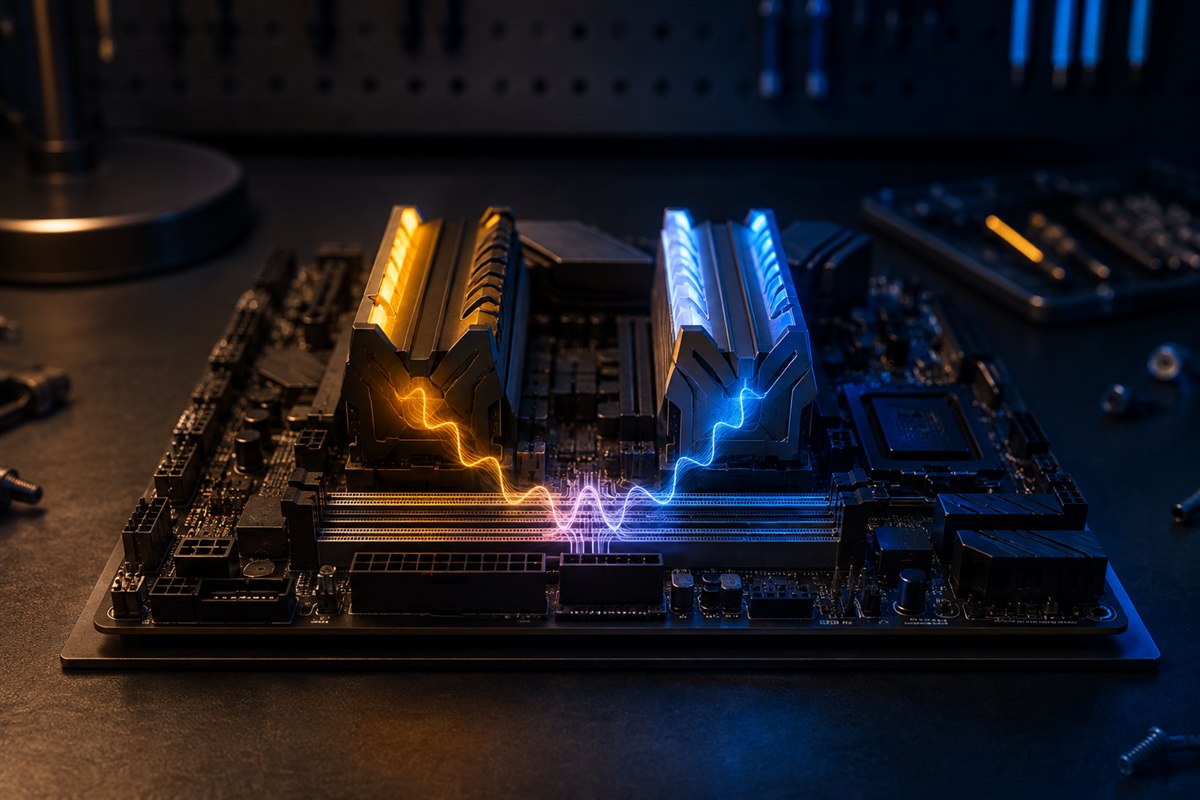
Two modules with different advertised speeds may boot together, but the faster module normally runs at a common speed and timing supported by the slower module and memory controller. Frequency is only one variable: DDR generation, module type, capacity, rank, timings, voltage, firmware and CPU support also matter.
What happens when RAM speeds differ?
At startup, firmware reads identification data from each module and chooses a configuration. A DDR4-3200 and DDR4-2666 module will commonly run at 2666 MT/s or another mutually supported setting, not one module at each data rate. Automatic fallback can be more conservative than either product’s headline specification.
XMP and EXPO are overclocking profiles, not a promise that separately sold modules will work together at the advertised setting. Even two kits with the same product name can use different components across production revisions.
Capacity can matter more than frequency
If a workload currently exhausts memory and pages heavily to storage, adding a compatible slower module may improve responsiveness despite a lower shared memory speed. If capacity is already sufficient, reducing frequency or loosening timings can reduce performance in memory-sensitive games and applications.
Channel layout also matters. Matched capacities in the recommended slots can enable full dual-channel operation. Some platforms use an asymmetric mode when capacities differ, with part of the memory operating across channels and the remainder in a narrower mode. Consult the motherboard or laptop manual.
Check more than the speed number
- DDR generation: DDR3, DDR4 and DDR5 are electrically and mechanically different.
- Form factor: desktop DIMMs and laptop SO-DIMMs are not interchangeable.
- Module support: confirm capacity per slot, total capacity, ranks and any ECC or registered-memory requirements.
- Voltage and timings: the system needs a stable common setting.
- Upgrade access: many laptops use soldered memory or have only one replaceable slot.
Use the system manual and motherboard qualified-vendor list as evidence. A QVL is not exhaustive, but it identifies configurations the manufacturer tested.
Install and test the memory safely
- Update important backups and record current firmware settings.
- Shut down, unplug the system and follow electrostatic precautions.
- Install modules in the manual’s recommended slots.
- First boot at default memory settings. Confirm total capacity and negotiated speed.
- Run the operating system’s memory diagnostic plus a reputable extended memory test.
- Test demanding everyday workloads and watch for crashes, freezes, application errors or corrected hardware errors.
If instability appears, load firmware defaults and test each module separately. Do not raise voltage beyond manufacturer limits to force incompatible kits to cooperate.
Is mixing RAM good or bad?
It is acceptable when compatibility is confirmed, the machine is stable and added capacity solves a real limitation. It is less predictable than a matched kit and can reduce speed. For a new build or important workstation, buy one validated kit containing the full desired capacity. For an upgrade, match the original module specification as closely as possible while understanding that identical labels do not guarantee validation together.
Frequently asked questions
Will different RAM speeds damage the PC?
Compatible memory running at automatically negotiated settings should not cause physical damage, but incompatible or unstable settings can prevent booting or corrupt work.
Can I mix RAM brands?
Sometimes, because electrical specifications matter more than the logo. A matched kit is still more predictable.
Is four RAM sticks slower than two?
Not inherently, but four modules place more load on the memory controller and may reduce the maximum stable overclocked speed.