
What Should You Upgrade First in Your PC?
Decide whether your PC needs more RAM, an SSD, a GPU or a platform upgrade by measuring the workload that feels slow and checking compatibility.
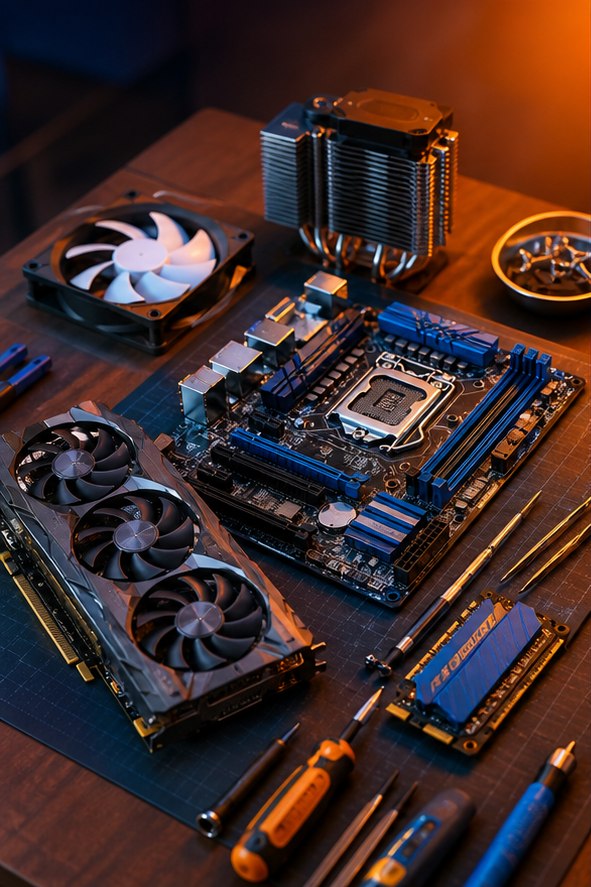
The right upgrade removes a limit you can observe. Before replacing a part, describe the problem precisely: slow startup, stuttering in one game, long exports or running out of space. A new GPU will not fix every slow computer, and a new CPU may require a motherboard and memory change too.
Make a repeatable baseline
Restart the PC, finish pending updates and run the task that feels slow. Record how long it takes and inspect CPU, memory, GPU and disk activity during that task. Keep the project, graphics settings and background applications consistent. Use Task Manager’s relevant GPU engine view rather than assuming its default graph represents all GPU work.
Check storage health, free space and cooling first. A drive with errors calls for a backup and fault investigation, while a blocked cooler can reduce sustained performance. If only websites are slow, compare another device and investigate the connection with our Wi-Fi troubleshooting guide. Buying internal PC parts will not repair a weak wireless link.
Match the symptom to a likely upgrade
| Observed problem | Investigate | Before buying |
|---|---|---|
| Slow app loading on a hard disk | A compatible system SSD. | Drive health, connection type and migration plan. |
| Slow switching with memory pressure | More supported RAM. | Application use, replaceable slots and maximum capacity. |
| GPU-limited gaming at your settings | A graphics upgrade or lower settings. | CPU behaviour, PSU connectors and case clearance. |
| Long CPU-heavy work | A supported CPU or platform upgrade. | Application scaling, cooling and full platform cost. |
| Running out of space | More storage or data housekeeping. | Backups and actual capacity needs. |
For gaming, compare the same scene at a lower resolution or reduced graphics load. A large improvement can suggest a GPU limit in that test, while little change calls for a closer look at CPU work, frame caps and other limits. Overall CPU utilisation can hide one busy thread, so avoid diagnosing from a single percentage.
Check the whole upgrade path
For RAM and storage, use the exact device manual and our compatibility guide. Some laptops and compact desktops have soldered memory or proprietary connections. Check the service procedure before purchasing a part you cannot install.
For a GPU, verify length, thickness, cable room and PSU requirements. For a CPU, check socket support, BIOS version and cooling. If a new motherboard and memory are needed, compare the complete platform cost with the benefit to your actual workload. A motherboard swap can also affect operating-system activation and encryption recovery.
Keep a list of what you will reuse and why it is still suitable. Old modular PSU cables must not be reused with a different PSU unless their compatibility is explicitly confirmed by its maker. A part that physically fits is only one step toward a safe, working upgrade.
Protect files and verify the result
Back up your files and verify that you can open a sample of the backup. Save encryption recovery keys separately before firmware, motherboard or system-drive changes. Download the official drivers or installer you will need and record important firmware settings. Shut down and disconnect power before replacing internal components.
Change one major part at a time where practical, then repeat the baseline task. Record performance, temperatures and any instability. If the machine is faster but begins crashing, the upgrade is not finished: check connections, return tuning to defaults and run the manufacturer’s diagnostic process. Keep the original component and packaging until the new configuration works reliably.
If measurements show the current PC already meets your workload, an upgrade is optional. A better monitor, a dependable backup or a quieter cooling setup may be more useful than a component with a bigger specification number. Decide against the result you wanted at the beginning, not the excitement of the shopping list.
References and further reading
Use these manufacturer resources alongside the manuals for your specific parts. This is an educational guide, not a hands-on product review or benchmark.
Spotted an error? Send a correction with the page link and your hardware model. Read our editorial policy.