
How to Secure an Android Phone: A Practical Checklist
Protect an Android phone with updates, a strong screen lock, safer app permissions, backups and account recovery options.
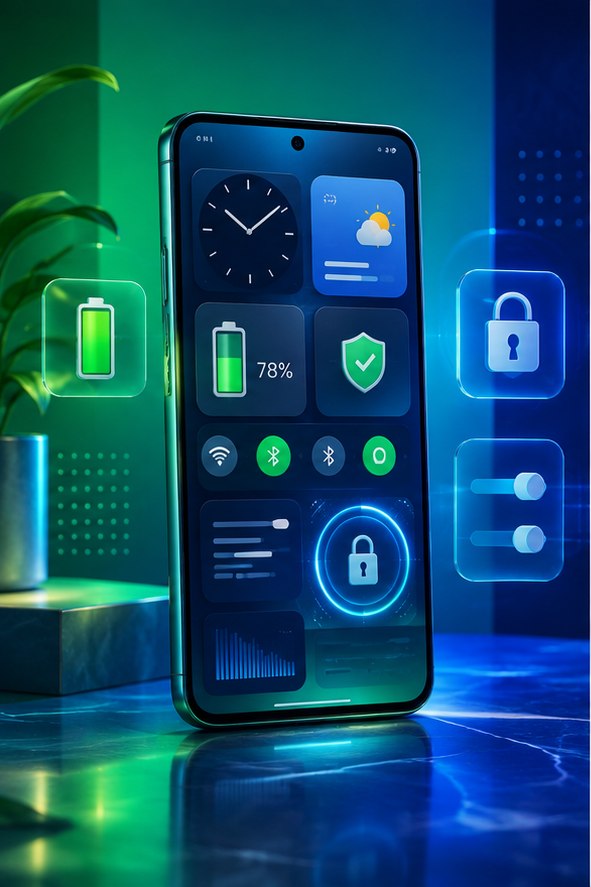
Protect an Android phone with updates, a strong screen lock, safer app permissions, backups and account recovery options. Use this practical checklist as a starting point and confirm model-specific instructions with the service or device maker.
Start with the lock screen
Use a PIN or password that is difficult to guess and does not reuse a banking PIN. Biometrics make daily unlocking convenient, while the PIN remains the fallback protecting encryption and settings. Set the phone to lock promptly and hide sensitive notification content on the lock screen.
Record where your Google Account recovery information is stored before changing security settings.
Install updates from device settings
Check both the Android version and security update status. Menu names vary by manufacturer. Install system and Google Play system updates, restart when requested and update apps through the Play Store.
If a phone no longer receives security patches, reduce its exposure to sensitive work and plan a supported replacement instead of installing updates from unknown websites.
Review apps and permissions
Uninstall apps you do not use. In Permission Manager, inspect access to location, microphone, camera, contacts, files and nearby devices. Choose only-while-using or approximate location when that is enough.
Accessibility, device administrator, notification access and VPN permissions can provide broad control. Review those special-access lists separately.
Protect the account and recovery path
Turn on two-step verification for your Google Account, preferring a passkey, security key or authenticator where supported. Save backup codes offline and review signed-in devices. Enable the official device-finding feature only after understanding its location and account requirements.
Never give a verification code to someone who contacted you unexpectedly, including someone claiming to recover your account.
Back up before the phone is lost
Check the last successful device backup and photo-sync status. Some app data, downloaded files and authenticator accounts require separate export or transfer steps. Test that contacts appear in the intended account, then review this checklist every few months.
References and further reading
These primary resources support the guidance and provide current, service-specific instructions.
Found something that needs updating? Send a correction with the page URL and supporting source.