
GPU Fans Not Spinning? Essential Troubleshooting Guide
Determine whether fan-stop mode is behaving normally or your graphics card has a cooling, power or hardware problem.
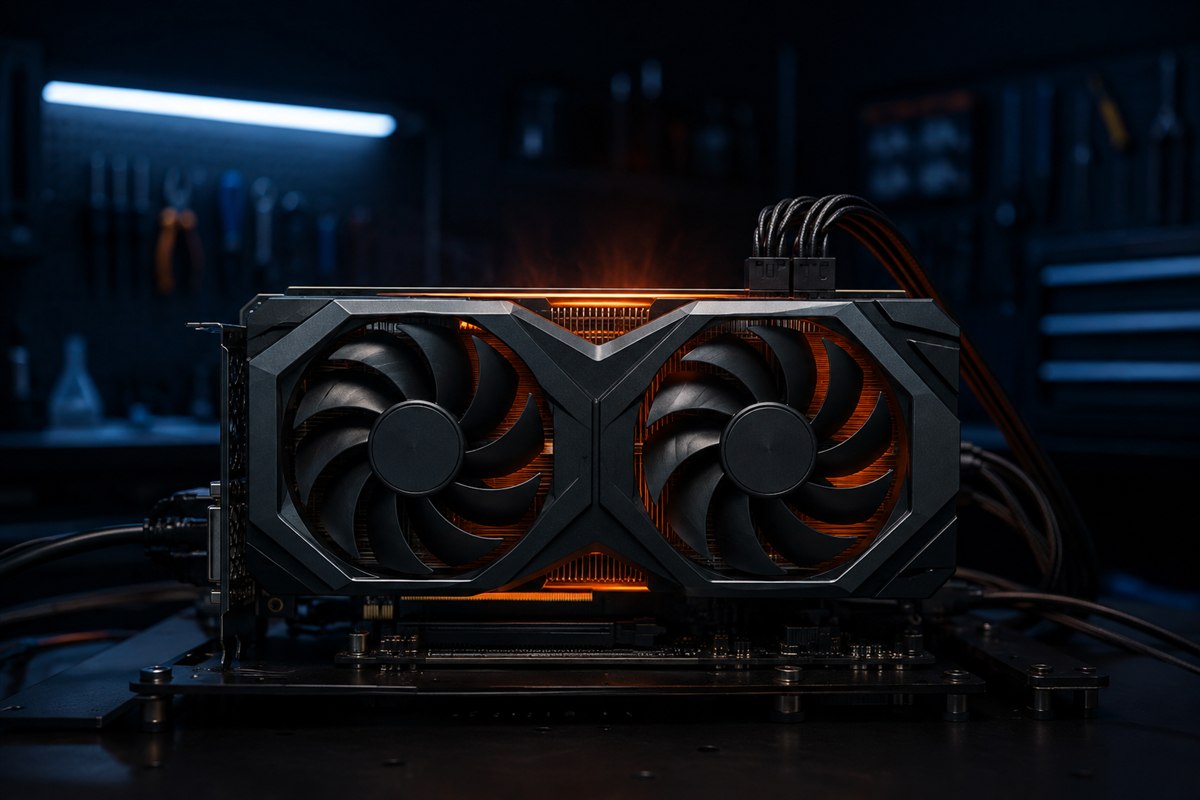
Stationary GPU fans at the desktop are often normal: many cards use a zero-RPM or fan-stop mode below a temperature or power threshold. A fan that remains stopped while temperatures rise under load, makes grinding noises or starts only when pushed needs attention.
First check whether the behavior is normal
Read the exact card’s product page or manual for terms such as fan stop, zero RPM, 0dB or semi-passive cooling. Monitor temperature with the GPU manufacturer’s software or another trusted tool. Start a known game or benchmark briefly and watch the temperature and fan-speed reading.
If the fans start as temperature rises and the card remains within its specified operating behavior, there may be no fault. Do not run a prolonged stress test when temperature climbs rapidly or the display becomes unstable.
Shut down and inspect the fans
- Turn off the PC, switch off the PSU and unplug power.
- Wait for LEDs to go dark, then ground yourself on the metal case.
- Check for packing material, loose cables, dust or another object touching a blade.
- Inspect blades for cracks and the shroud for damage.
- Use short bursts of compressed air while holding each fan still. Do not overspin it with air.
Do not put fingers or tools near fans while the system is running. Avoid opening the graphics card or removing its cooler while it is under warranty unless the manufacturer explicitly authorizes the work.
Verify the graphics card and power cables
A card can sometimes display an image while still having a power-related problem. With power disconnected, confirm the card is fully seated and the slot latch is engaged. Check every required PCIe power connector at the card and modular PSU. Use only cables approved for that exact PSU model; modular PSU cables are not universally interchangeable.
For high-power connectors, follow the card and PSU maker’s seating and bend-radius instructions. Check whether the PSU meets the card’s power recommendation. If the card has diagnostic LEDs, interpret them using its manual.
Rule out fan-control and driver problems
Return third-party fan utilities to default and close competing control applications. Update or reinstall a stable graphics driver from the card vendor. If supported, use the manufacturer’s utility to apply a modest manual fan percentage for a short test. Confirm the RPM reading changes.
A custom fan curve with a long zero-speed region can explain the symptom. Restore defaults before making a new curve. Never use software to exceed the manufacturer’s permitted fan range or thermal limits.
Stop testing when hardware failure is likely
Seek warranty service or a qualified repair if one fan never turns while others do, a fan scrapes or wobbles, the card overheats at stock settings, or there is a burning smell, smoke, melted connector or visible damage. Shut down immediately for electrical symptoms.
Replacing only the fan may be possible outside warranty, but connector, voltage, size and mounting compatibility matter. Do not continue gaming by pointing a desk fan at a card with a confirmed failed cooler; that is not a controlled repair.
Frequently asked questions
Should GPU fans spin at startup?
Some cards briefly spin them as a self-test, while others may remain stopped. Check the exact model’s documented behavior.
At what temperature should GPU fans start?
There is no universal threshold. Firmware, model, mode and fan curve determine it.
Can dust stop a GPU fan?
Heavy contamination or debris can obstruct a fan, but a failed motor, cable, controller or zero-RPM mode can look similar.