
How to Choose the Best PC Parts for Your Needs
Choose PC parts around your workload and budget. Compare CPU, GPU, motherboard, RAM, storage, PSU and case compatibility before buying.
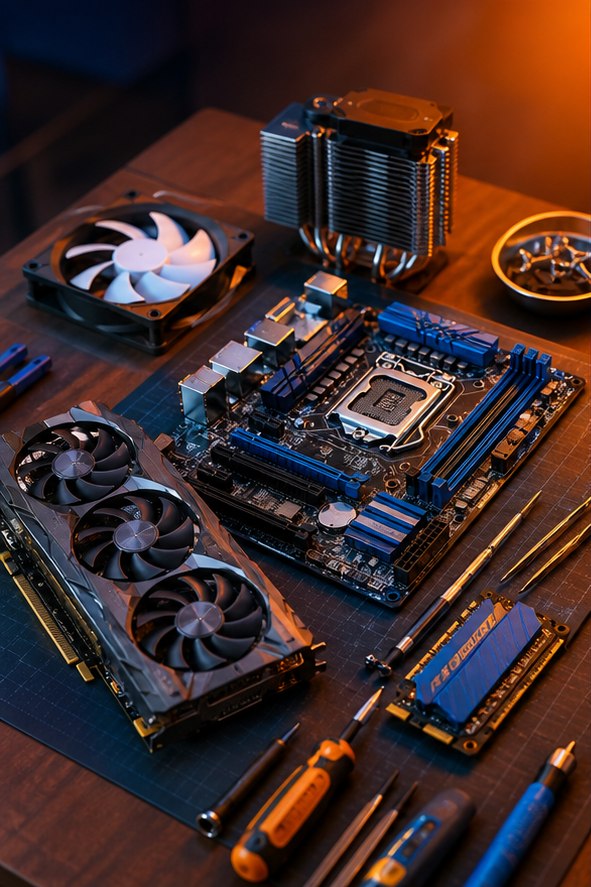
The best PC parts are the ones that fit your workload, your budget and each other. An expensive processor cannot rescue an unsuitable graphics card, and a fast SSD cannot make incompatible memory work. Use this guide to build a shortlist and a compatibility record before placing an order.
Start with what the PC must do
Write down your three main tasks and the result you want. For gaming, record the games, monitor resolution, refresh rate and desired graphics settings. For editing, record the application, footage resolution, codecs and typical project size. For everyday work, list the applications you keep open together and the displays you need to connect.
Use the software developer’s recommended specifications as a starting point. For creative applications, confirm whether key features depend on a particular GPU API, encoder or memory capacity. For local AI workloads, verify model memory requirements rather than assuming any gaming GPU will fit them.
Set a total budget that includes the monitor, keyboard, operating-system licence where needed, Wi-Fi, delivery and any assembly help. Compare full platform costs: a CPU that looks inexpensive can become a costly choice once its motherboard, memory and cooler are included. Reserve room for essential parts before allocating money to lighting or cosmetic upgrades.
Choose the CPU and GPU as a pair
Compare performance in the actual applications or games you intend to use. CPU core counts and clock speeds alone cannot fairly compare different designs. A workstation that compiles large projects has different priorities from a PC that spends most of its time in video calls. Check whether the CPU includes integrated graphics and whether a cooler is supplied.
For a gaming graphics card, compare results at your monitor’s resolution, including frame-time consistency and the settings used. Distinguish native rendering from upscaling and generated frames when reading performance claims. For video work, check codec support and application compatibility. GPU memory capacity matters, but more memory alone does not make one GPU faster than another.
Do not treat a generic online “bottleneck percentage” as a purchase decision. The limiting component changes with the game, scene, resolution and settings. If you already own a PC, measure its behaviour first using our upgrade guide.
Make a compatibility sheet before buying
| Part pairing | What to verify |
|---|---|
| CPU + motherboard | Socket, CPU support list, board revision and minimum BIOS version. |
| RAM + motherboard | DDR generation, module type, capacity, supported configuration and memory support list. |
| GPU + case | Length, thickness, height and cable space with fans or radiator installed. |
| Cooler + platform | Socket mounting kit, RAM clearance, case height or radiator support. |
| SSD + motherboard | SATA or NVMe support, drive length, lane sharing and heatsink clearance. |
| PSU + system | Physical format, required connectors, power recommendation and compatible cables. |
A matching CPU socket is necessary but not sufficient. Read the motherboard’s CPU support page for the exact processor and required firmware. If an older stock board needs a BIOS update, check whether the seller can update it or whether the board supports updating without a supported CPU installed.
Buy memory and storage for your workload
Choose enough RAM for the applications you actually run, then consider speed and latency within the platform’s supported limits. Look at the software’s recommendations and observed memory use. A matched kit is easier to validate than independently purchased modules with similar labels. Leave expansion room where practical, but remember that populating more slots can affect stable memory speeds.
For storage, estimate operating-system, application, game and project space separately. Include room for temporary exports and future updates. An SSD is useful for active work; an additional drive or service for backup serves a different purpose. A faster interface rating does not guarantee a noticeable improvement in every everyday task. Our RAM and SSD guide explains the physical and interface checks.
Choose a suitable PSU, case and cooling system
Start with the graphics-card manufacturer’s PSU recommendation and the requirements of your full system. Check the exact connector arrangement and the PSU maker’s documentation, including compatibility with the GPU’s power connector. Do not choose on wattage alone: protection features, electrical testing, warranty terms, noise and support are also relevant. An efficiency badge is not a complete quality assessment.
Check whether the case includes fans and whether its front panel lets air reach the components. Confirm motherboard size, cooler clearance, drive mounts, dust-filter access and front USB support. A smaller case can work well, but leaves less room for mistakes in component dimensions. Choose cooling for sustained load and acceptable noise, then verify the manufacturer’s compatibility list.
Compare the final shortlist and keep records
Create a simple table with the exact SKU, seller, delivered price, warranty, return terms and compatibility evidence for each part. Prices and availability change, so this guide deliberately uses selection criteria instead of a fixed shopping list. Check return conditions before buying open-box hardware and keep packaging until the build is tested.
As a final exercise, explain why each part is present. If you cannot identify a use for an expensive motherboard feature, a larger PSU or a premium SSD, compare a simpler alternative and put the difference toward the display, storage capacity or another need you can name. The aim is a complete computer that meets your targets, with no compatibility question left unresolved. Continue with the assembly walkthrough once that sheet is complete.
References and further reading
Use these manufacturer resources alongside the manuals for your specific parts. This is an educational guide, not a hands-on product review or benchmark.
Spotted an error? Send a correction with the page link and your hardware model. Read our editorial policy.